> ## Documentation Index
> Fetch the complete documentation index at: https://lightdash-mintlify-a1dca41c.mintlify.site/llms.txt
> Use this file to discover all available pages before exploring further.
# Filtering in the Explore view
> Add filters from the Filters tab, the field sidebar, or the results table, and nest them into groups
Filters restrict the data a query returns. Filtering a chart in the Explore view changes that chart alone — to filter every tile on a dashboard at once, see [dashboard filters](/explore/dashboards/filter). For the filter types and operators available on each field type, see the [filters reference](/explore/filters-reference).
There are three places to add a filter, and they all produce the same thing.
## From the Filters tab
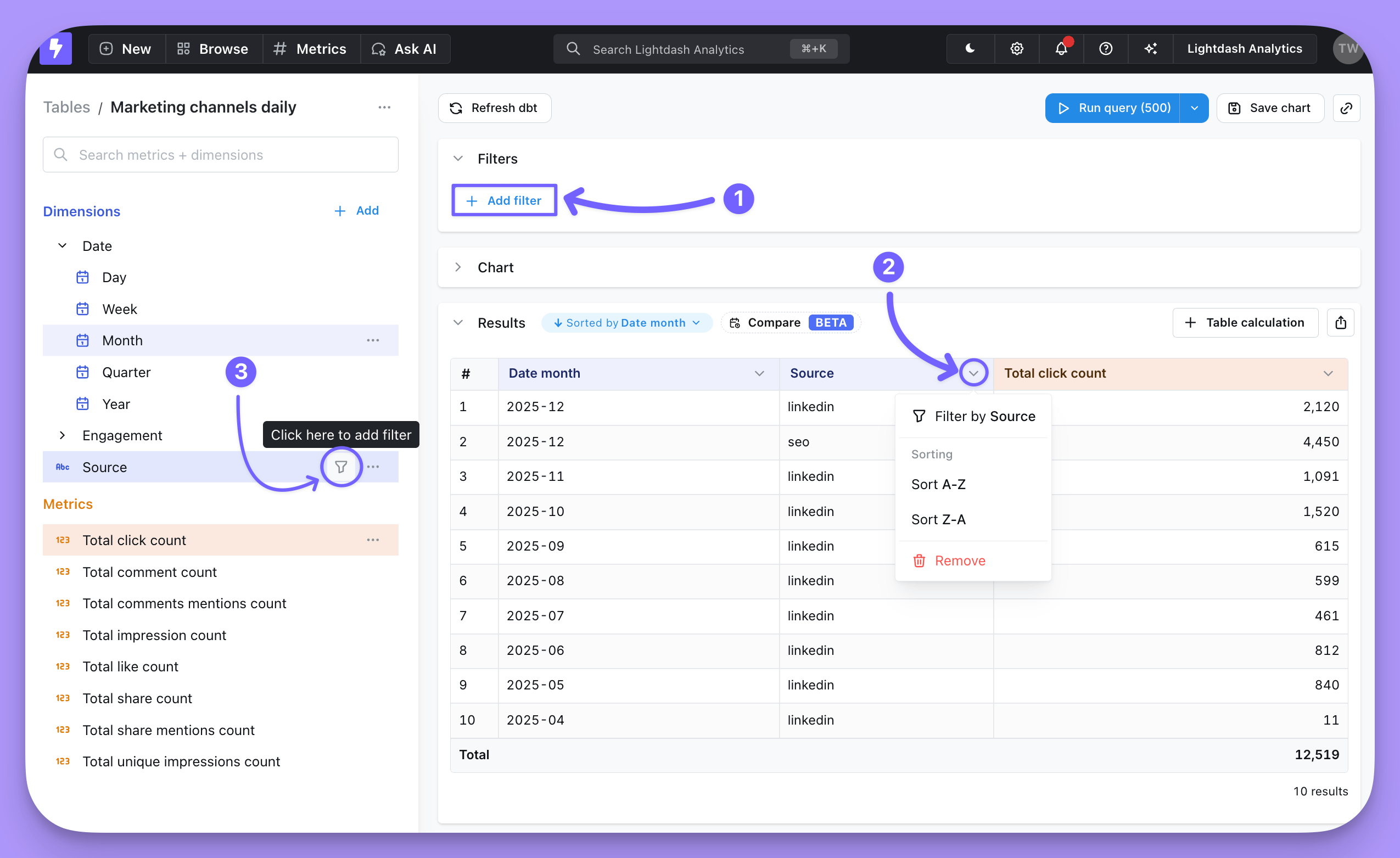
Open the `Filters` toggle, then click `Add filter`.
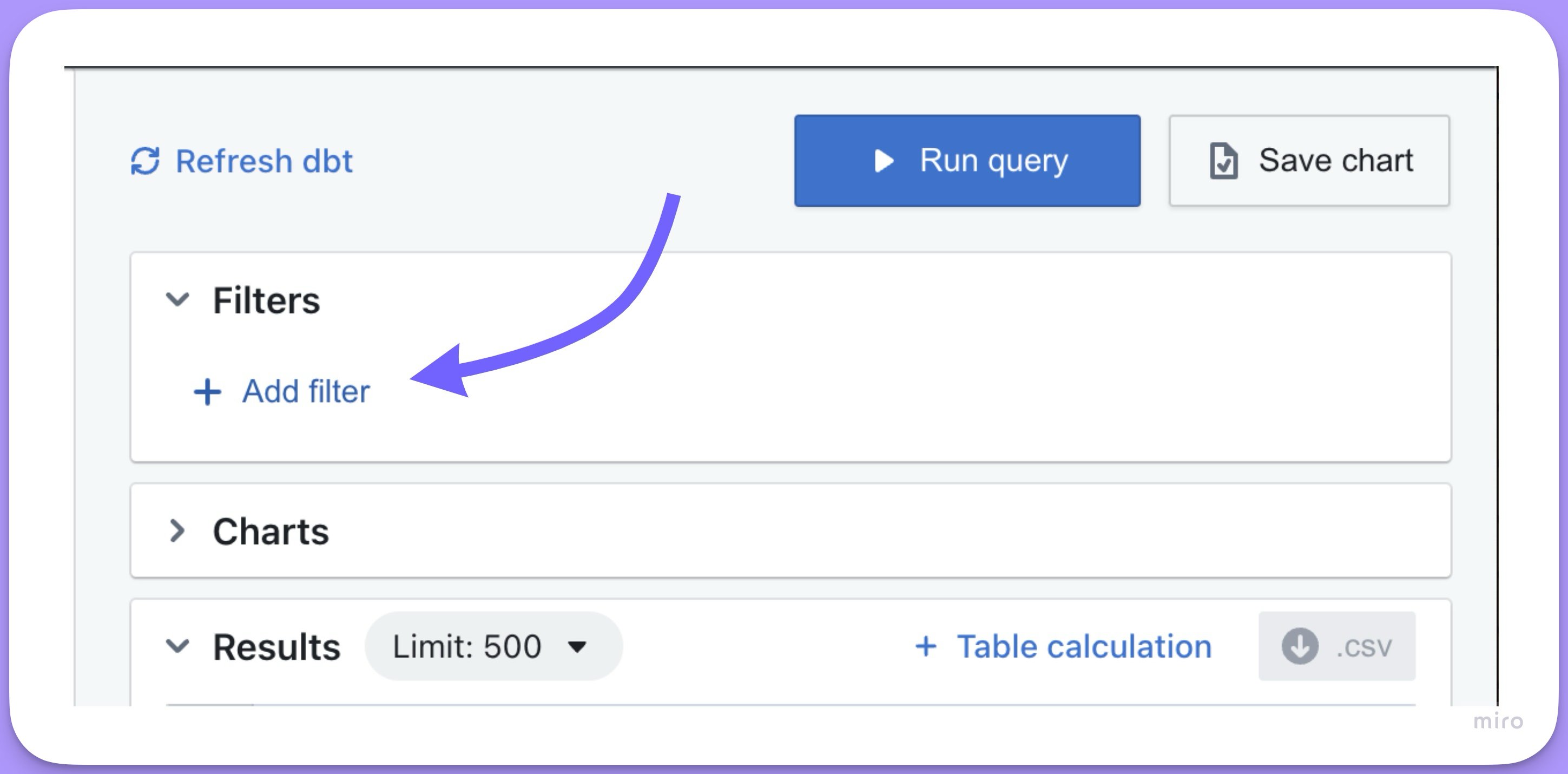 Select the field to filter from the drop-down list, then choose the filtering options.
## From the sidebar
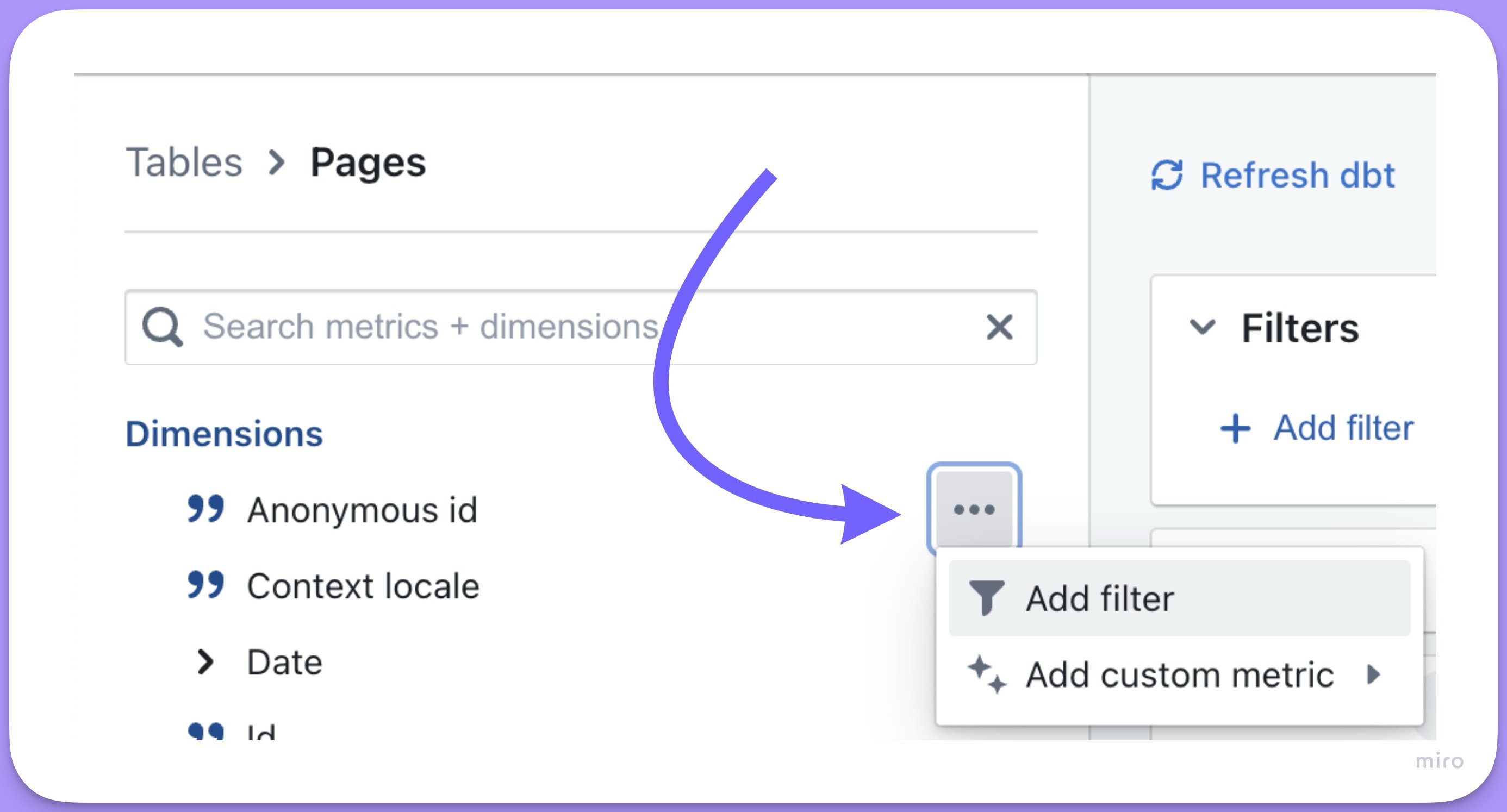
Click the `options` for a field in the sidebar list, then click `add filter`. The filter icon that appears when you hover over a dimension or metric does the same thing.
Select the field to filter from the drop-down list, then choose the filtering options.
## From the sidebar
Click the `options` for a field in the sidebar list, then click `add filter`. The filter icon that appears when you hover over a dimension or metric does the same thing.
 ## From the results table
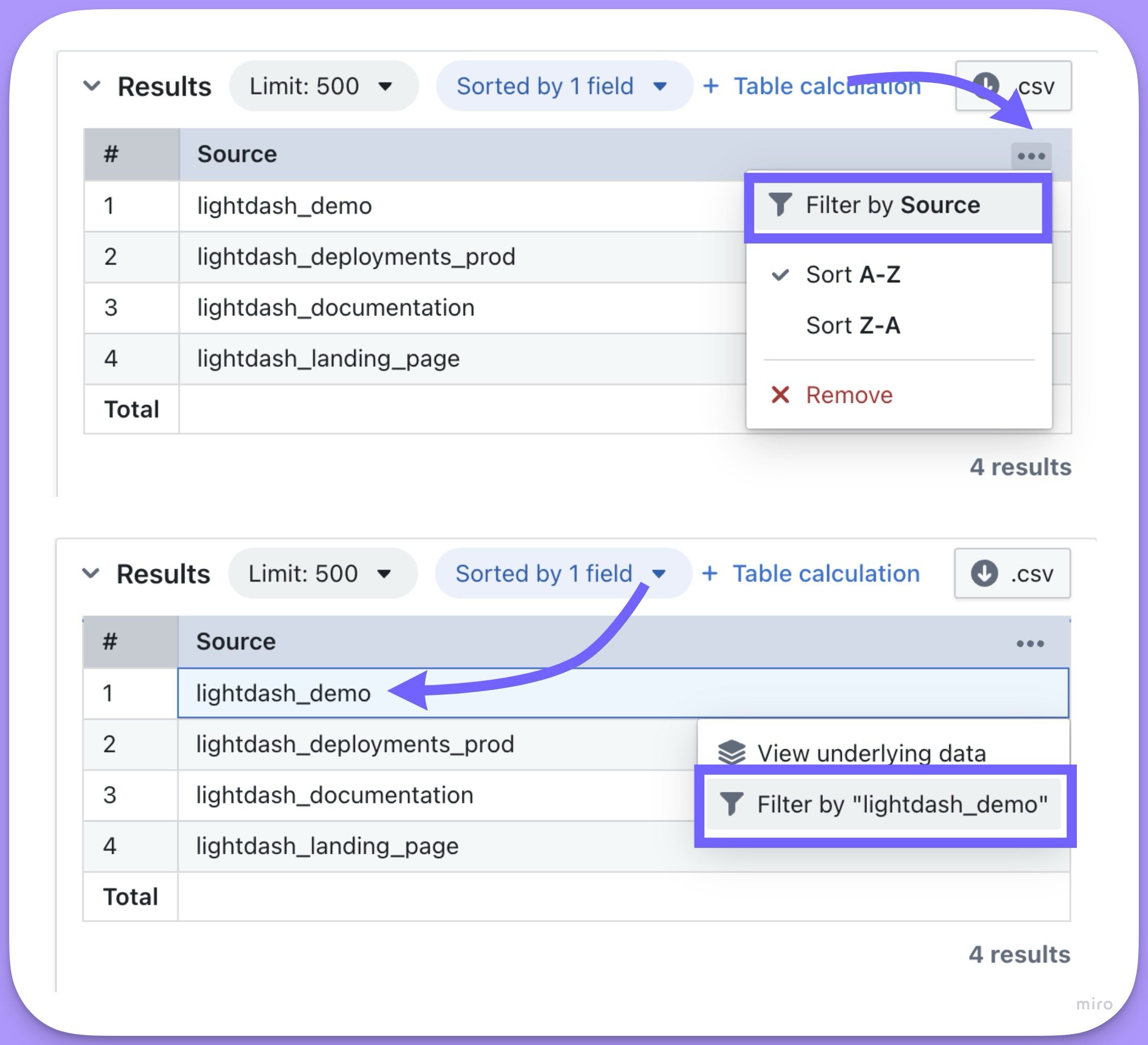
Once you have results, click the three-dot menu of the column you want to filter on and choose `Filter by [field name]`, or click a value in the table to filter by that value.
## From the results table
Once you have results, click the three-dot menu of the column you want to filter on and choose `Filter by [field name]`, or click a value in the table to filter by that value.
 ## Nested filters
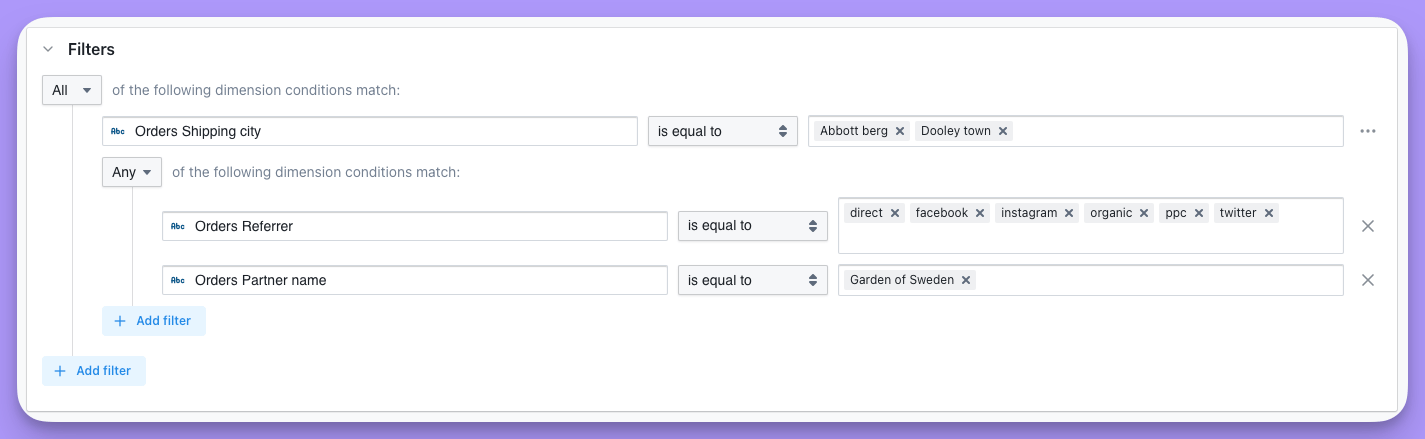
To nest filters, click the options button on the right-hand side of a filter and choose `convert to group`.
## Nested filters
To nest filters, click the options button on the right-hand side of a filter and choose `convert to group`.
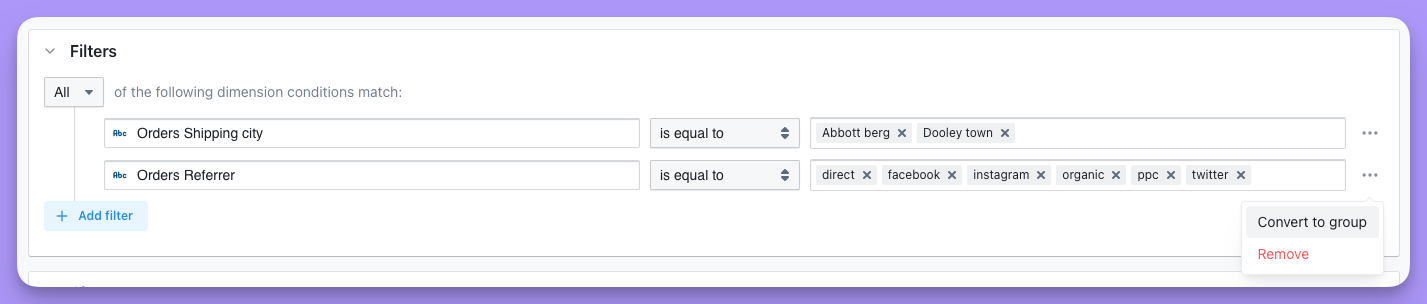 Then add a filter to the group by clicking `add filter`.